
How to Publish Your Website
Once your website is complete, you can easily publish it online from the publish settings.
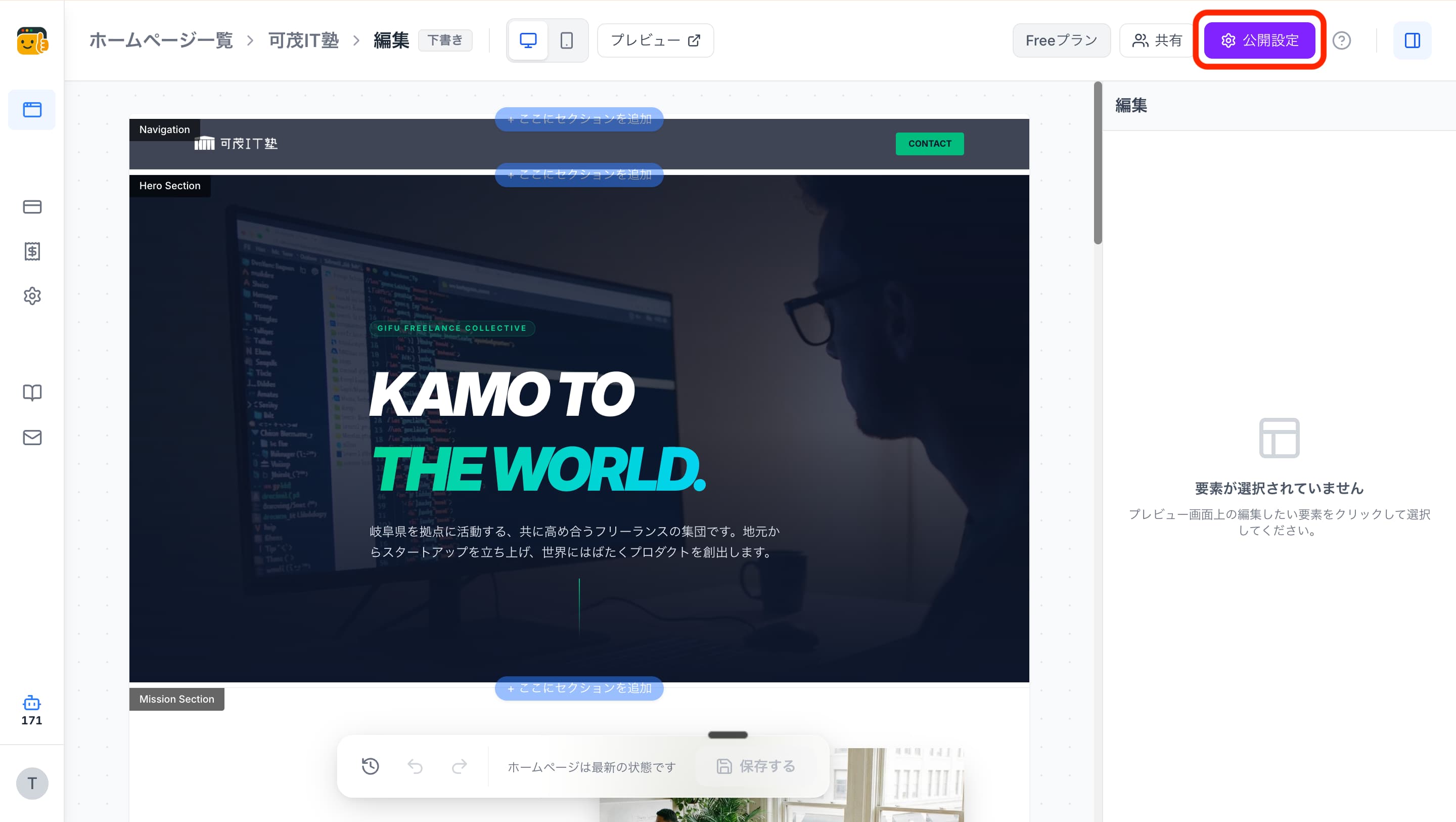
1. Open "Publish Settings"
Click "Publish Settings" in the top right of the editing screen.
2. Set the Page URL
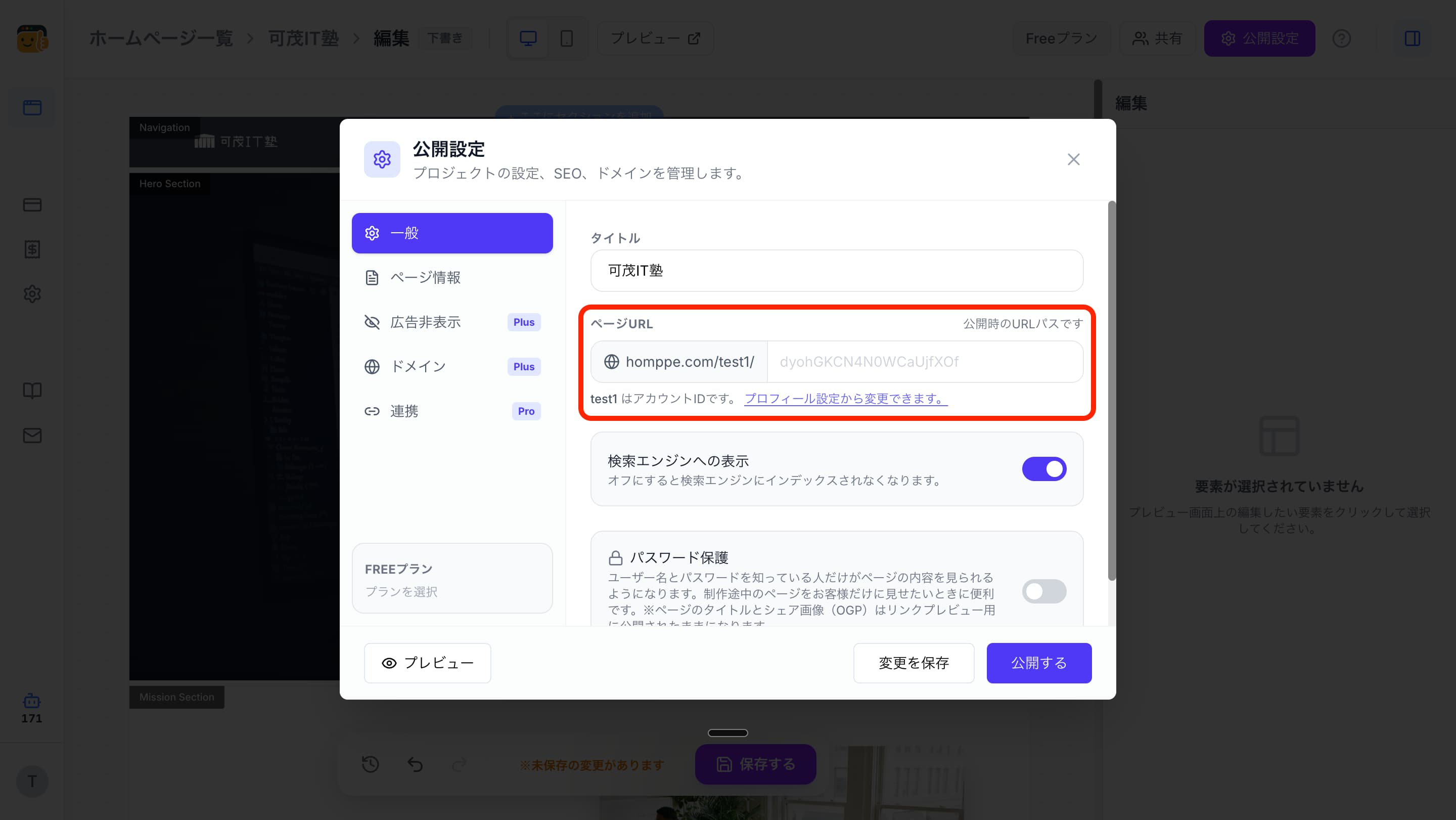
From "General", set the URL for the page you want to publish. The URL will look like this.
What Is an Account Name?
It's the first part of the URL.
Example:homppe.com/test1/〇〇〇
The "test1" part is your account name. You can change your account name from Profile Settings.
If you're using it for a shop or brand, we recommend something like
- Store name
- Brand Name
- Service Name
.
What is a page ID?
It's the last part of the URL.
Example:homppe.com/test1/kamo-itjuku
The part "kamo-itjuku" is the page ID. If you're creating multiple websites, using names that identify each project or page content makes them easier to manage.
For example, it can be set like
.
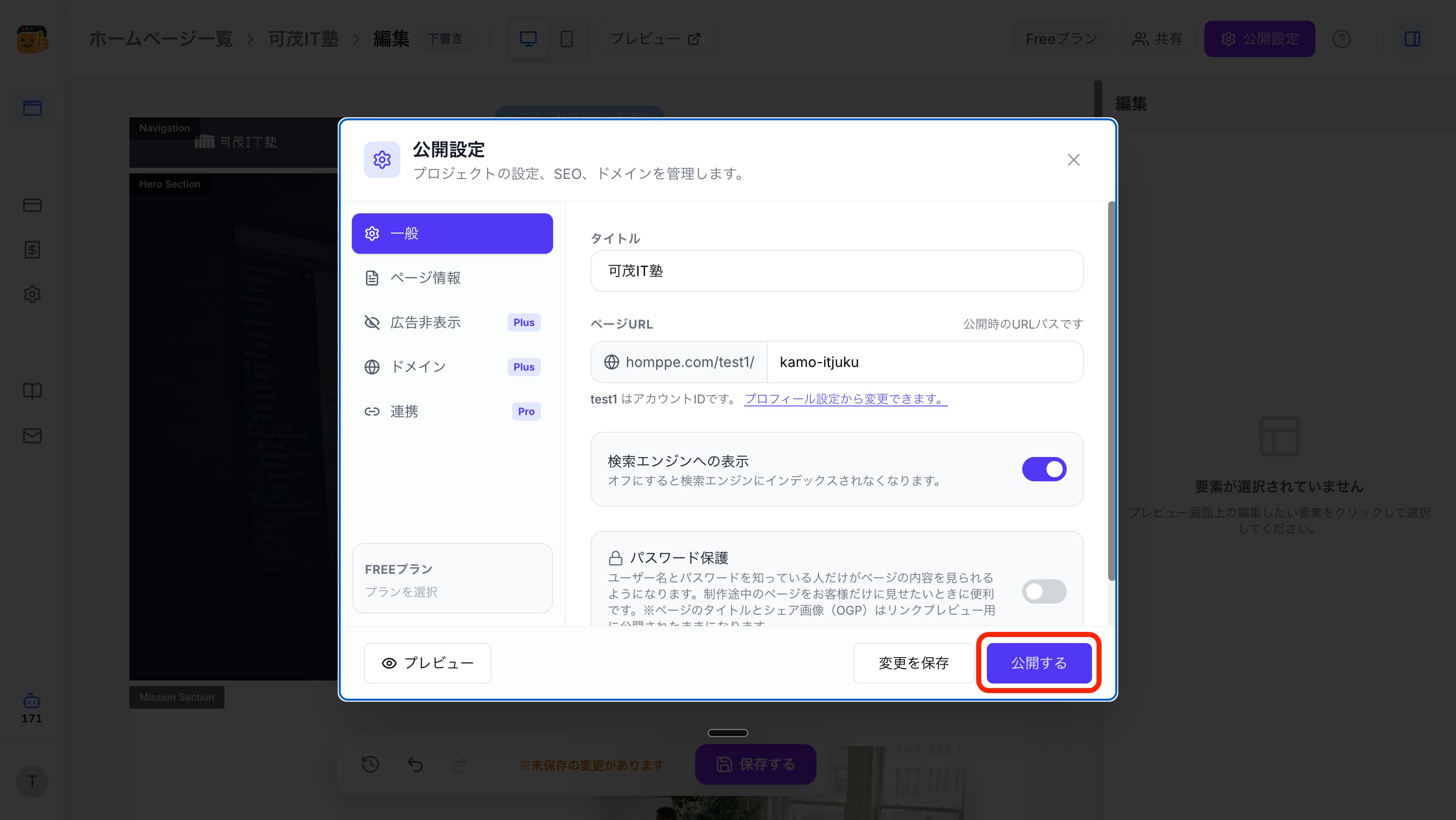
3. Click "Publish"
Once you've set the URL, click "Publish"Click . This completes the publishing of your website.
4. Check the Published Page
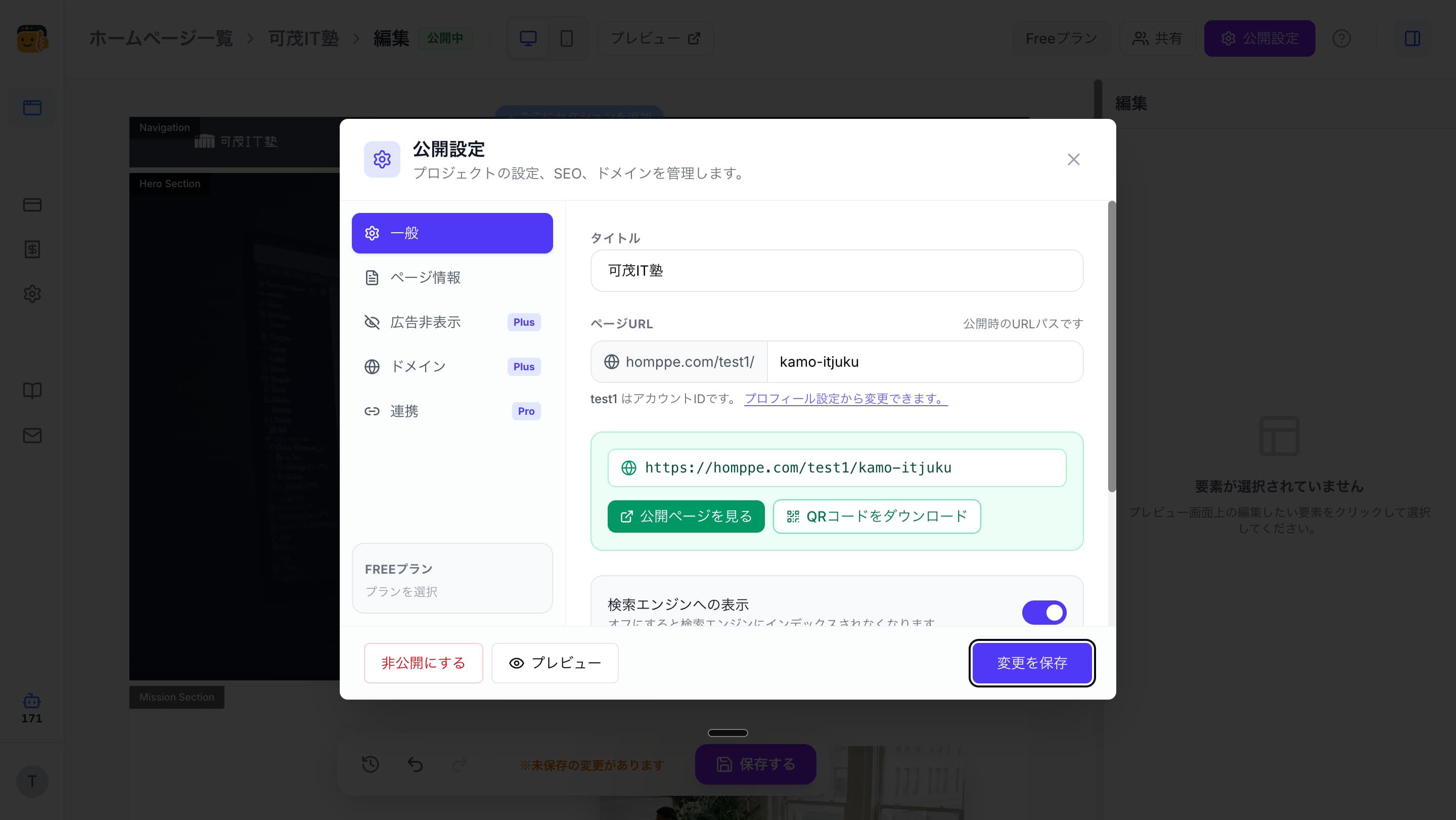
After publishing, you can do the following.
- "View Published Page" →Check your actual published website
- "Download QR Code" →Save the QR code image for the published page
QR codes are also great for use on flyers, shop cards, in-store POP displays, and more. We also recommend setting your published URL as your Instagram profile link. This lets people who see your Instagram go straight to your shop or service's detailed website.